

Applies to iOS version 1.21.x or later, Android version 1.21.x or later
Depending on the organisation settings of your IBSS Platform, you may have the option to allocate a cost code to a booking.
If enabled by your organisation, you will see an entry for Booking Cost Code when creating a booking.
To add a cost code to your booking:
- Create a booking.
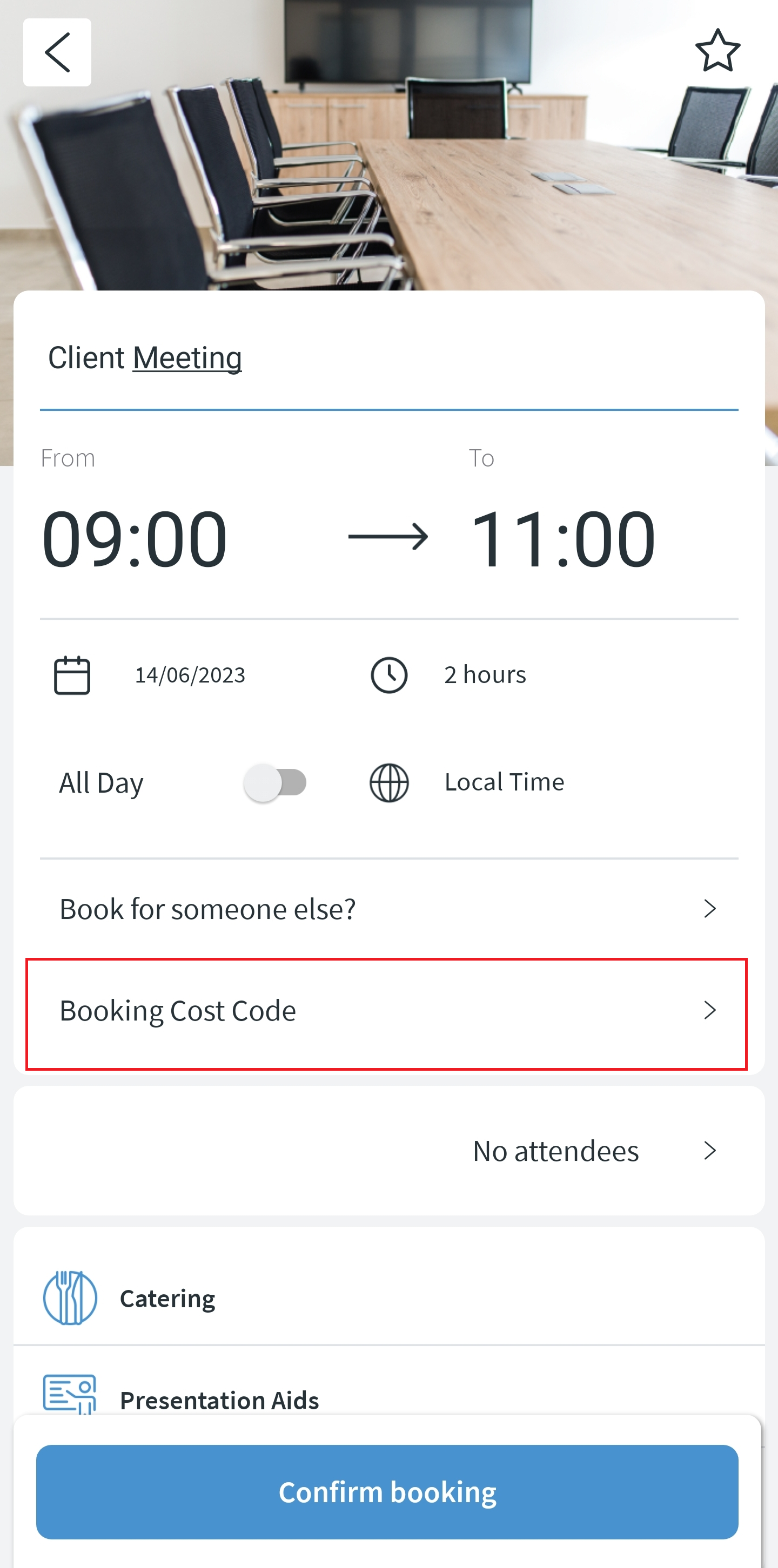
- Click Booking Cost Code on the booking screen.
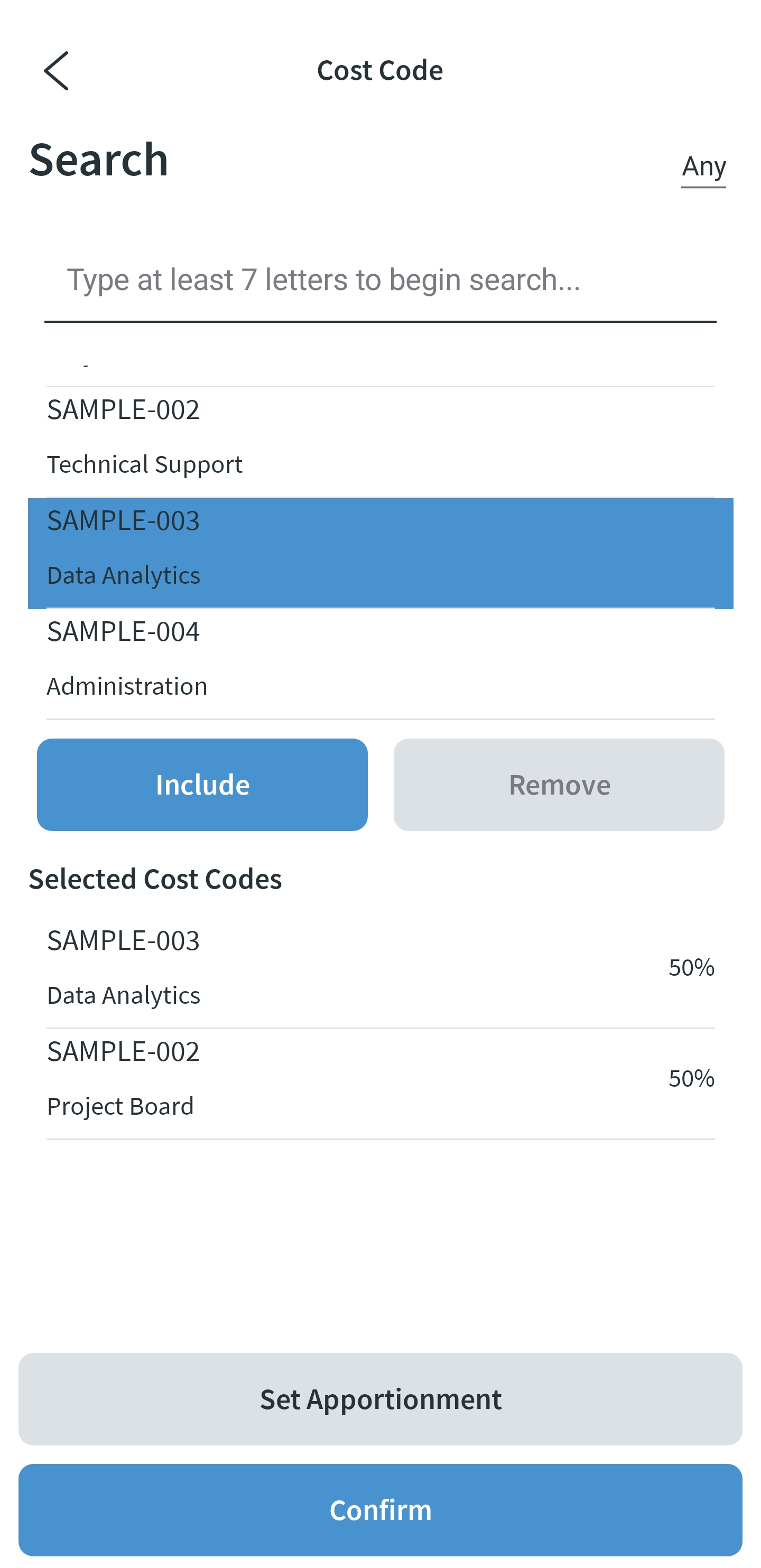
- A screen opens with cost codes listed to apply to your the booking. Select one or more appropriate codes by clicking Include.
- (optional) You can edit the apportionment of the cost codes, to divide the costs differently across multiple cost centres. Click Set Apportionment and moving the sliders to the desired percentage split, and then click Apply.
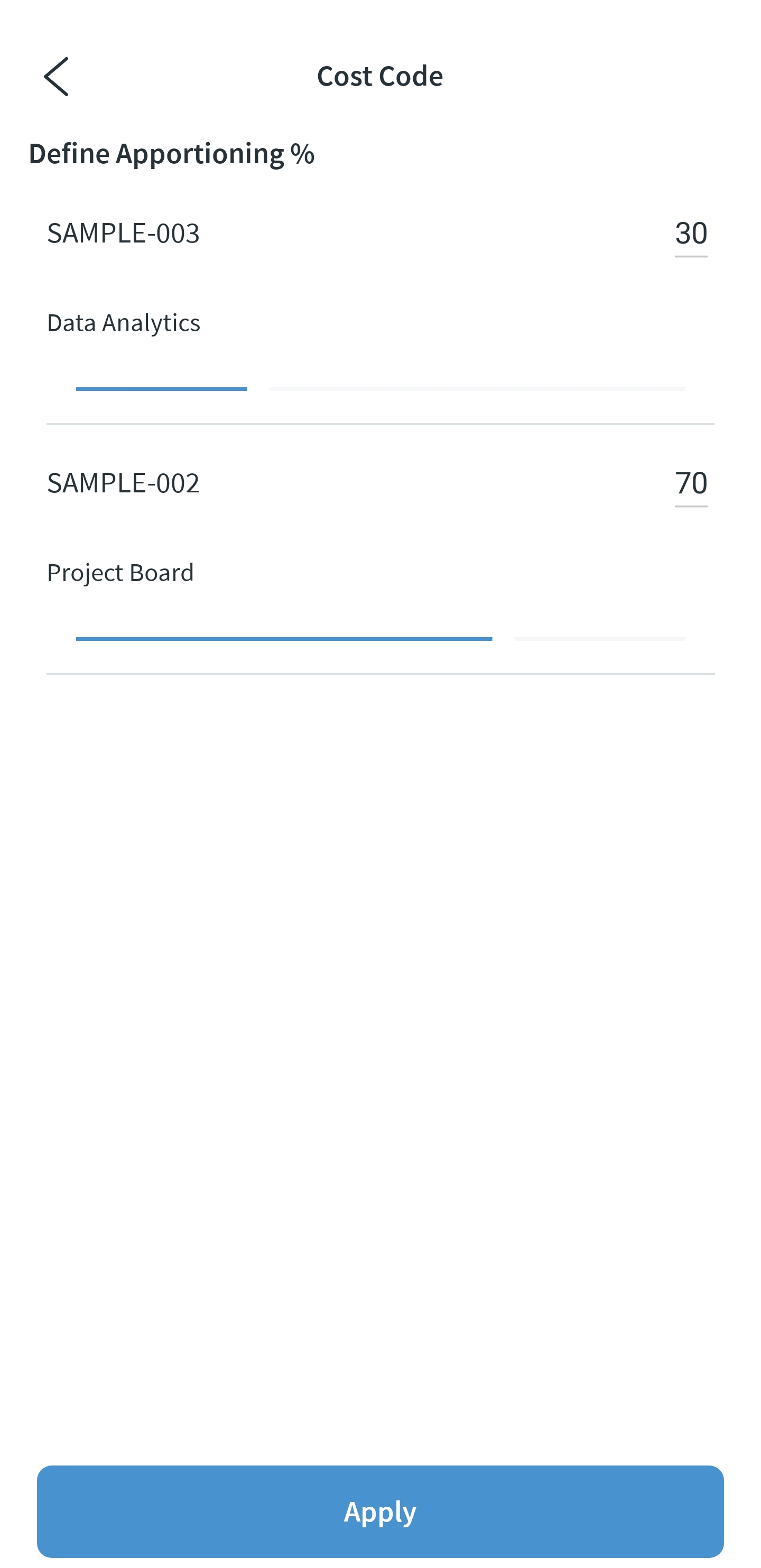
Now, your booking cost has one or more cost codes applied, and you have apportioning adjusted as needed.
⚠️ If you will be adding catering to this booking, the booking cost codes will be applied to catering order(s) too. Then you can assign different cost codes to your catering order(s) if needed. For this, on the catering order page, select the Cost Code option at the bottom of the screen.
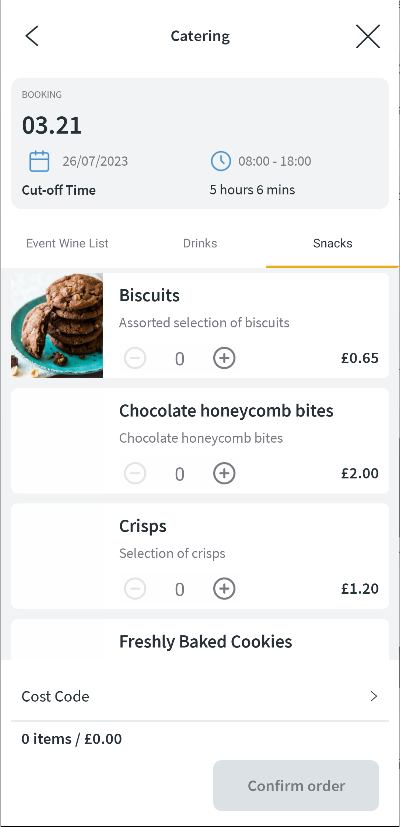
Selecting this option will bring you to the screen where you can select the cost codes you wish to use and set the apportionment.