

👋 Share your feedback with us about this documentation. Highlight a word or a whole paragraph and click the plus icon that appears. We keep improving this knowledge base based on your comments.
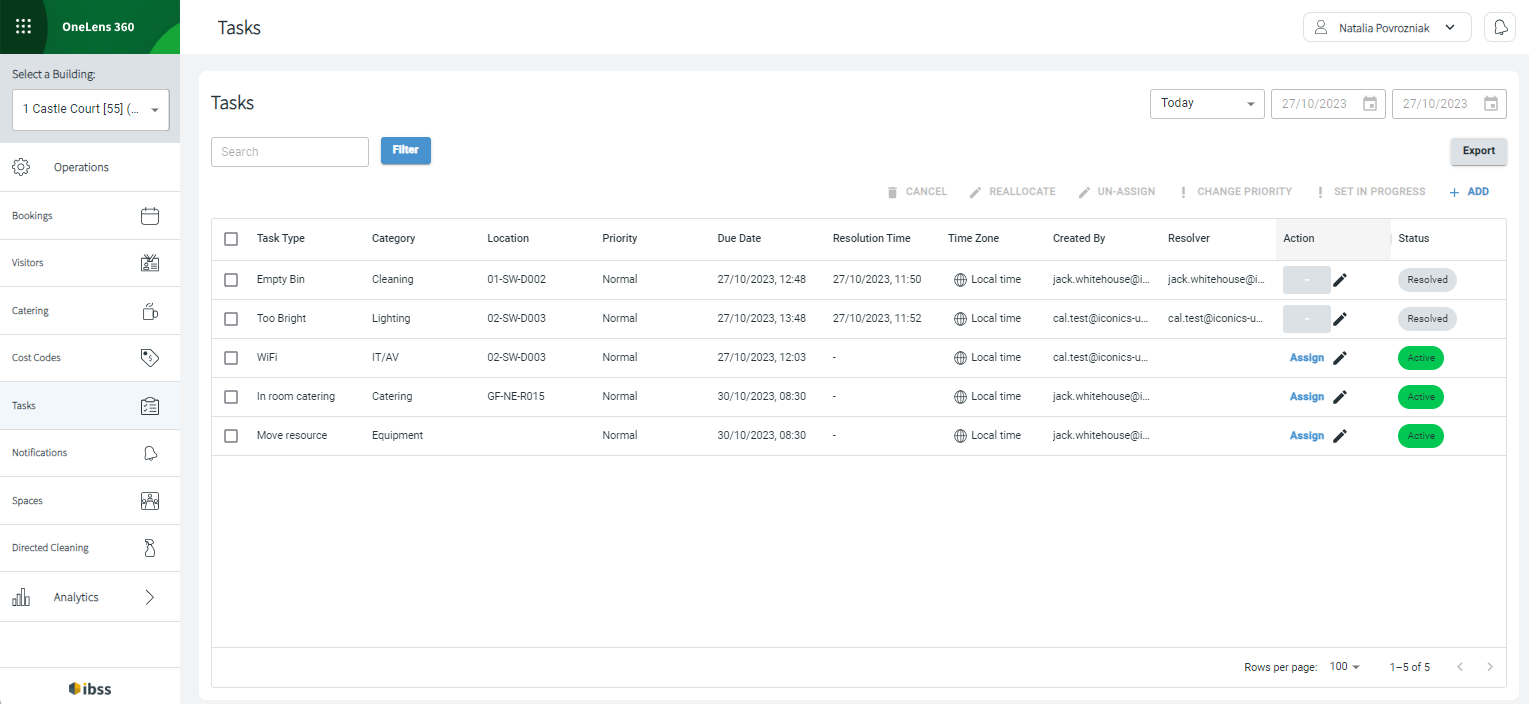
The Tasks section of OneLens provides a central location for Facility Managers to create and manage service requests for a building. It provides a list view of the tasks for today for the selected building. Select a date range to display a list of tasks for that time in your selected building.
Adding or editing a task
You can add new tasks by clicking the Add button at the top right to open a page for you to enter task information.
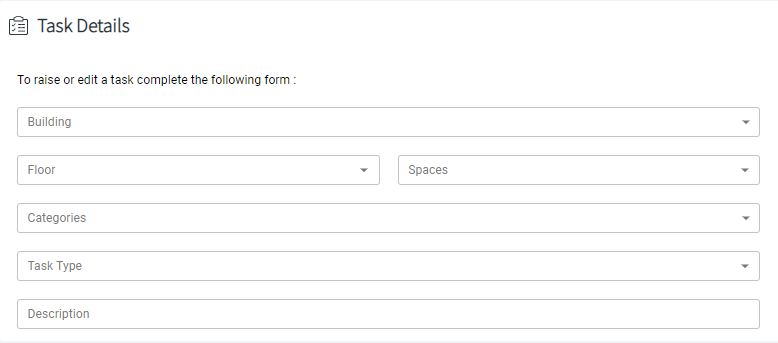
To edit a task, click the pencil icon next to it.
To assign a task, click the Assign button next to the task if you have appropriate role permissions.
To cancel, reallocate, un-assign a task, change its priority, or set in progress, select a task row and click corresponding button in the top right corner of the table.
Resolving a task
If you belong to the team that handles tasks, the only way to resolve a task, for now, is to do it in Roamer. Read about how to do this here: Roamer Task Management.