

How catering works
-
Organisation level. For their users to be able to order catering to their meeting room bookings, organisations first define the following:
- If the catering feature should be available for the organisation at all and, if yes, to what user roles.
- Whether one or multiple catering orders can be added to space bookings.
- Whether catering orders must be approved by Catering Manager or not.
- How budgeting of catering orders should work, whether cost codes should be used for catering orders.
-
Operational team and kitchen level. This is where the operational team defines:
- Catering items, their cost, availability, and preparation times. This will impact what users can order depending on when they are ordering.
- Allergens or dietary restrictions for filtering catering items.
- Catering menus and thresholds to order from them.
- User level. After everything is set up organisation-wide, users with appropriate permissions can create a booking for a space that allows catering services to be delivered and add catering orders to their confirmed space bookings.
Learn more about aspects that affect what and when you can book here: Catering order cut-off flow.
Adding a catering order to a booking
To be able to add catering orders to a booking, you must book the space that allows catering first. Use the Catering search criteria to view only spaces that allow catering services to be delivered.
After you've booked a space with catering options, do the following:
- Click
- Catering in the booking confirmation popup.
- Or start editing the booking and add your catering order from there.
The catering order page opens.

- Review the summary of your booking: room, date, and time. You can edit your booking by clicking the View booking button in the top left corner.
- The Order By field shows the cut-off time that is set for the selected menu if advance ordering limitations are set. Make sure to finalise your order or plan any changes so they are completed by this time. If you've made the booking after the cut-off time and try adding a catering order, the message will be displayed: New orders or changes for this booking are now closed.
- Add one or more cost codes and their percentage allocation if applicable.
⚠️ Your default cost code(s) will be already added – listed on the right. Add or remove cost codes using arrows.
Read more about setting your default cost codes here, in the corresponding section: Settings in Flex.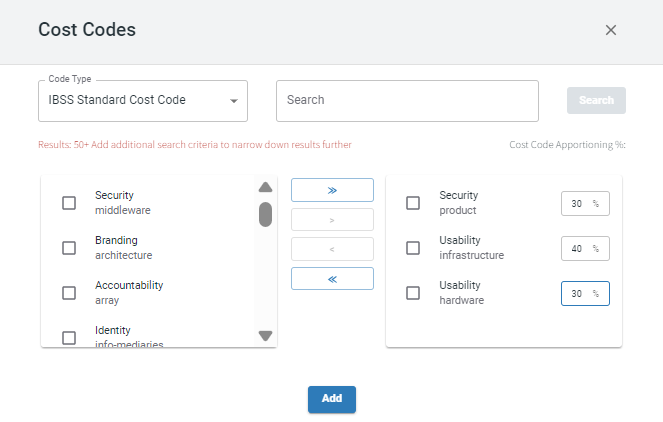
- Select an available menu from the drop-down.
⚠️ There may be several menus available for the space that you have booked. Select one menu to choose items from it. If you select items from one menu, and then switch to another, all previously selected items will be cleared.
- You can filter by allergens for the relevant catering items to be excluded from the menu or filter out food that is, for example, marked as vegan, vegetarian, or kosher.
- View catering items available on the menu in three tabs: BEVERAGES, SNACKS, and FOODS.
⚠️ Note that catering items have time-bound preparation and delivery times: some items can become unavailable if it's past the cut-off time for item preparation or outside of the catering item availability period. This means that depending on when you place or modify your order in relation to your booking time, you may see a different set of items available on the menu.
- Expand the menu item to view its details if you need.
- Edit quantity for menu items.
- (optional) Add you allergy information to notify the kitchen staff so that they can adjust accordingly.
- (optional) Add notes if relevant.
- View the service and clean-up times that are needed to support your order. By default, the time set is the start and end time of your booking. You can set different delivery and clean-up times.
- Click Save Order.
Approvals. Your order might need to be approved before it is processed by the kitchen depending on your organisation settings. Once it is approved, you'll receive a confirmation. If you don't need approval, your booking is set up at this point.
Adding multiple catering orders
You can also add multiple catering orders if you need food or drinks to be delivered and cleaned at different times during your meeting. This option is available to users with the API.Catering.MultipleOrders permission.
To add another catering order:
- Use the Add Further Orders button on the confirmation popup.

- Or click Add New Order on the catering order editing page.

Automatic catering orders
Once you book a space that is equipped with automated catering orders and the duration of your booking is at least as the minimal duration set for such catering order, you will see the corresponding Automated Order on the booking record page or when trying to add more catering orders.

From here, you can:
- Turn the Disable Catering Order toggle on if you don't want this set of catering items to be delivered.
- Click Cancel Order altogether.
- Depending on the Order By time as shown on the Related Space Booking card, you may be able to add further catering orders. In the image above, current time is past the cut-off time and, as the message says that no more orders are allowed for this booking.
Automated catering order is calculated based on the number of attendees that you added to your booking. The number of items included will also change upon changing the number of attendees.